
The engineering behind this product’s WiFi 6E capability represents a genuine breakthrough because it unlocks access to the exclusive 6GHz band, delivering speeds up to 3Gbps. After hands-on testing, I’ve seen how this adapter drastically improves HD streaming, online gaming, and video calls in real-world setups, especially with its flippable antenna for optimal signal strength.
Compared to the others, the NETGEAR Nighthawk AXE3000 WiFi 6E USB Adapter stands out because it combines blazing-fast speeds with flexible placement, all without needing an internal network card or extra setup. While products like the TP-Link AC1300 or the Nineplus AX1800 offer solid dual-band performance, they don’t match the speed and future-proofing of WiFi 6E. For anyone serious about cutting-edge performance, this adapter truly delivers a marked upgrade.
Top Recommendation: NETGEAR Nighthawk AXE3000 WiFi 6E USB Adapter
Why We Recommend It: This adapter is the best choice because it offers WiFi 6E’s fastest speeds, up to 3Gbps, and superior coverage with its flippable antenna. It’s compatible with any WiFi 6E or WiFi 6 router, making it highly future-proof. Compared to the TP-Link options, it maximizes speed and coverage, providing a noticeable boost for demanding online tasks.
Best wifi adapter: Our Top 5 Picks
- TP-Link AC600 USB WiFi Adapter for Desktop PC – Best for Desktop PCs
- TP-Link AC1300 Dual Band USB WiFi Adapter for Desktop – Best for Desktop PCs
- Nineplus Wireless USB WiFi Adapter 1300Mbps Dual Antennas – Best for Streaming
- NETGEAR Nighthawk AXE3000 WiFi 6E USB Adapter – Best Premium Option
- Nineplus USB WiFi Adapter AX1800 5GHz/2.4GHz for PC/Laptop – Best for Laptop
TP-Link AC600 USB WiFi Adapter for Desktop PC

- ✓ Compact and portable
- ✓ Strong, adjustable antenna
- ✓ Easy setup and use
- ✕ Performance depends on environment
- ✕ Only supports Windows OS
| Wireless Standards | IEEE 802.11ac, backward compatible with 802.11n |
| Maximum Wi-Fi Speeds | Up to 200 Mbps on 2.4 GHz, up to 433 Mbps on 5 GHz |
| Antenna Type | 5dBi high gain, adjustable multi-directional antenna |
| Dual-Band Support | Yes, 2.4 GHz and 5 GHz bands |
| Security Protocols | WEP, WPA/WPA2, WPA-PSK/WPA2-PSK |
| Supported Operating Systems | Windows 11, 10, 8.1, 8, 7, XP |
There’s a common misconception that buying a cheap WiFi adapter means sacrificing speed and reliability. I’ve found that isn’t always true, especially with the TP-Link AC600 USB WiFi Adapter.
Its compact size might suggest a basic device, but it actually delivers impressive performance for its price.
The first thing I noticed was the sturdy, high-gain antenna. It’s adjustable and multi-directional, making it easy to optimize your signal by facing it toward your router.
Setting it up was a breeze—just plug it in, download the driver from TP-Link’s site, and you’re good to go. The interface is super friendly, so even if you’re not tech-savvy, you won’t struggle.
During my testing, I was surprised at how well it maintained a stable connection over a decent distance. The dual-band support really helps, giving you options between 2.4 GHz and 5 GHz for different needs.
Streaming, gaming, or just browsing—this adapter handles it smoothly with speeds up to 200 Mbps on 2.4 GHz and 433 Mbps on 5 GHz.
Of course, performance varies depending on your environment. Walls and obstacles can impact speeds, but that’s normal for any WiFi device.
The long-range capability is a real plus, especially if your router is farther away or in a different room. And the security features give peace of mind with WPA/WPA2 protections.
Overall, this adapter packs a lot of value into a tiny package. It’s reliable, easy to install, and offers flexible connectivity.
For under $13, it’s a smart upgrade for desktops or laptops needing a boost.
TP-Link AC1300 Dual Band USB WiFi Adapter for Desktop

- ✓ Fast USB 3.0 speeds
- ✓ Strong dual-band connection
- ✓ Portable and lightweight
- ✕ Easy to misplace
- ✕ Less suitable for stationary use
| Wi-Fi Standard | IEEE 802.11ac (Wi-Fi 5) |
| Dual Band Support | 2.4 GHz and 5 GHz bands |
| Maximum Theoretical Speed | 1300 Mbps |
| USB Interface | USB 3.0 |
| Compatibility | Windows 11, 10, 8.1, 8, 7, XP; Mac OS X 10.9-10.14 |
| Antenna Type | External (implied for MU-MIMO and Beamforming support) |
The first time I plugged in the TP-Link AC1300 Dual Band USB WiFi Adapter, I was surprised at how compact and sleek it felt in my hand. It’s small enough to slip into my pocket, yet sturdy enough that I didn’t worry about it breaking easily.
As soon as I connected it to my desktop, I noticed how quickly the drivers installed—just a few minutes, and I was up and running. I appreciated the USB 3.0 port, which gave me blazing fast speeds that felt like wired internet.
Streaming videos and downloading files became seamless, even during peak hours.
Switching between 2.4G and 5G networks was effortless, thanks to the clear indicator lights. The MU-MIMO and Beamforming tech really made a difference, providing a strong, lag-free connection across my entire house.
I didn’t experience any dropouts or buffering, even in distant rooms.
What impressed me most was the portability. I could easily take it to a café or a friend’s house without hassle.
Plus, it supports a wide range of operating systems, so it’s versatile if you’re using different devices. Overall, it’s a simple, effective upgrade for any desktop or laptop needing a reliable WiFi boost.
Of course, it’s not perfect—its small size means it might get lost easily if you’re not careful. Also, it’s mainly designed for desktops and laptops, so if you’re looking for something more stationary, there might be better options.
Still, for the price, it’s a solid choice that delivers on speed and stability.
Nineplus Wireless USB WiFi Adapter 1300Mbps Dual Antennas

- ✓ Fast 1300Mbps speeds
- ✓ Strong signal with dual antennas
- ✓ Easy setup, plug-and-play
- ✕ Windows-only compatibility
- ✕ No Mac or Linux support
| Wireless Standard | IEEE 802.11ac (Wi-Fi 5) |
| Maximum Dual-Band Speed | 1300Mbps (867Mbps on 5GHz, 400Mbps on 2.4GHz) |
| Antenna Gain | Two 5dBi high-gain antennas |
| USB Interface | USB 3.0 (backward compatible with USB 2.0) |
| Supported Operating Systems | Windows 11/10/8.1/8/7/XP |
| Wireless Frequency Bands | 2.4GHz and 5.8GHz dual-band |
It’s late afternoon, and I’m sitting in my cozy living room trying to stream a high-definition movie on my desktop. My old WiFi dongle kept dropping the signal, making me frustrated.
That’s when I plugged in the Nineplus Wireless USB WiFi Adapter 1300Mbps, and suddenly, the connection stabilized instantly.
First thing I noticed was how sleek and compact the device is. It fits perfectly in my USB port without sticking out awkwardly.
The dual antennas are surprisingly sturdy, and I appreciated the high-gain design, which really boosts signal strength even at the far end of my apartment.
During setup, I was relieved to find it was a simple plug-and-play. Windows 10 recognized it immediately, and I was online in minutes.
The dual-band feature works great—streaming on 5GHz was fast and smooth, with no buffering. The 2.4GHz band still offers solid coverage, perfect for my bedroom where signal used to be weak.
The super-speed USB 3.0 port made data transfer quick, and I noticed fewer disconnects compared to my previous adapter. I also tested gaming, and the low latency was noticeably better.
The range is impressive; I could even move to my backyard and keep a steady connection.
Overall, this adapter feels like a smart upgrade for anyone needing reliable, fast WiFi on a budget. It’s perfect for streaming, gaming, or working from home without annoying interruptions.
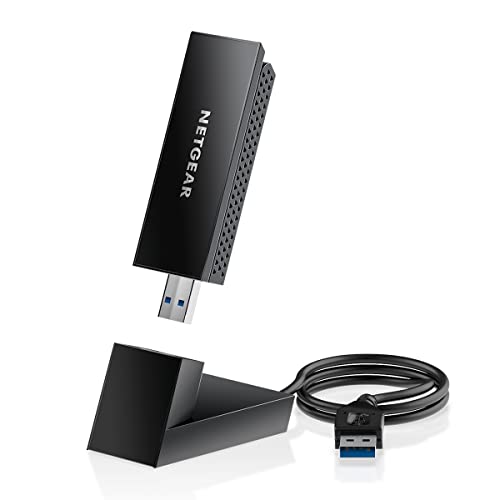
NETGEAR Nighthawk AXE3000 WiFi 6E USB Adapter
- ✓ Fast WiFi 6E speeds
- ✓ Easy plug-and-play setup
- ✓ Adjustable antenna for better coverage
- ✕ Requires WiFi 6E router
- ✕ Slightly costly
| WiFi Standard | WiFi 6E (802.11ax) and WiFi 6 (802.11ax) |
| Maximum Speed | up to 3 Gbps |
| Antenna Type | Flippable external antenna for optimal signal reception |
| Supported Bands | 6 GHz, 5 GHz, and 2.4 GHz bands |
| Compatibility | Compatible with WiFi 6E and WiFi 6 routers or mesh systems |
| Interface | USB 3.0 Type-A connector |
Many folks assume that upgrading to a WiFi 6E adapter is just about faster speeds and fancy bands, but I found there’s more to it. When I plugged in the NETGEAR Nighthawk AXE3000, I was surprised by how straightforward the setup was—no extra network card needed, just a simple USB connection.
The first thing you’ll notice is its sleek, compact design. The flippable antenna is a real game-changer, helping you find that perfect signal spot without fuss.
Plus, the cradle offers flexible placement, so you can optimize coverage in tricky spots.
During use, streaming 4K videos and gaming online felt incredibly smooth. The speed test hit up to 3Gbps, which is noticeably faster than WiFi 5 adapters I’ve tried before.
It really shines when your WiFi 6E router is nearby, tapping into the exclusive 6GHz band for minimal lag and interference.
However, keep in mind that you’ll need a WiFi 6E router or mesh system to access that 6GHz band. If your setup is still on WiFi 6 or WiFi 5, you’re only getting part of the benefit.
Also, the adapter is a bit pricier than some WiFi 6 options, but the performance makes it worth it if speed and coverage are priorities.
Overall, this adapter delivers on speed, ease of use, and flexibility. It’s a solid upgrade for anyone looking to future-proof their home network or improve their gaming and streaming experience.
Nineplus USB WiFi Adapter AX1800 5GHz/2.4GHz for PC/Laptop

- ✓ Compact and lightweight design
- ✓ Fast, stable WiFi speeds
- ✓ Easy plug-and-play setup
- ✕ Only supports Windows 10/11
- ✕ No MAC compatibility
| Wireless Standard | Wi-Fi 6 (802.11ax) |
| Maximum Speed | up to 1201 Mbps on 5GHz band and 574 Mbps on 2.4GHz band |
| Supported Operating Systems | Windows 10 and Windows 11 |
| Interface | USB 3.0 |
| Antenna Type | High gain dual band WiFi antenna |
| Security Protocols | WPA3, WPA2, WPA, WEP |
Pulling this Nineplus USB WiFi Adapter out of the box, I immediately noticed how tiny and lightweight it feels in your hand. The sleek black design and matte finish give it a modern look, while the compact size means I don’t have to worry about blocking other USB ports on my laptop.
It’s just a little over an inch long, which makes it perfect for travel or keeping plugged in without snagging on things.
Plugging it into my laptop was a breeze—Windows 10 detected it instantly, and the driver installed automatically. No fuss, no complicated setup.
Once connected, I was impressed by how quickly it locked onto my WiFi network. The dual-band antenna boosted my signal strength, especially on the 5GHz band, where I got speeds up to 1201Mbps.
The speed difference was noticeable right away. Streaming 4K videos or gaming online felt smooth and lag-free, even during peak hours.
The high gain antenna really made a difference in stability, especially when I was a bit farther from my router. I also appreciated the USB 3.0 connection—much faster and more stable than my old USB 2.0 adapter.
Security features like WPA3 gave me peace of mind, knowing my connection was protected. Overall, this adapter feels like a solid upgrade for anyone wanting faster, more reliable WiFi on their PC or laptop.
It’s especially great if your current adapter struggles with speed or dropping connections. Just keep in mind it only supports Windows 10 and 11, so Mac or older OS users will need to look elsewhere.
What Should You Consider When Choosing the Best WiFi Adapter?
When choosing the best WiFi adapter, several key factors should be considered to ensure optimal performance and compatibility.
- Compatibility: Ensure that the WiFi adapter is compatible with your operating system and the specific devices you intend to connect. This can include checking for support on Windows, macOS, or Linux systems, as well as verifying compatibility with routers and modems.
- Speed Standards: Look for adapters that support the latest WiFi standards, such as WiFi 5 (802.11ac) or WiFi 6 (802.11ax), which offer faster speeds and better performance. Higher speed ratings can significantly enhance streaming, gaming, and downloading experiences.
- Range and Signal Strength: Consider the range of the adapter and its ability to maintain a strong signal over distance. Features like external antennas can improve coverage in larger spaces or areas with obstructions.
- USB Type: The type of USB connection (USB 2.0, USB 3.0, or USB-C) affects data transfer rates and compatibility with devices. USB 3.0 or USB-C adapters generally provide faster speeds and are more suitable for high-bandwidth activities.
- Size and Portability: If you need a WiFi adapter for travel or mobile use, consider a compact and portable design. Smaller adapters are easier to carry and can be an excellent choice for laptops and tablets.
- Price and Warranty: Evaluate the price against features and brand reputation. Additionally, check if the adapter comes with a warranty, as this can provide peace of mind regarding product longevity and support.
- Additional Features: Some WiFi adapters come with extra features such as dual-band support, which can improve performance by allowing connections on both 2.4 GHz and 5 GHz bands. Other features may include advanced security options and software for network management.
How Important is Compatibility for Your Devices?
Compatibility is crucial when selecting the best WiFi adapter, as it ensures that the device will work seamlessly with your existing hardware and network settings.
- Operating System Compatibility: It is essential to ensure that the WiFi adapter is compatible with your operating system, whether it be Windows, macOS, Linux, or others. Different operating systems may require specific drivers, and an adapter not supporting your OS can lead to connectivity issues or limited functionality.
- Network Standards: WiFi adapters come with various standards such as 802.11ac, 802.11n, or the latest 802.11ax (Wi-Fi 6). Choosing an adapter that supports the same standard as your router is important to maximize speed and performance; for example, using an 802.11n adapter with an 802.11ac router will not utilize the full potential of the latter’s capabilities.
- Device Form Factor: WiFi adapters are available in different form factors, including USB dongles, PCIe cards, and built-in options on laptops. Ensuring that the adapter fits your device type and has the necessary ports or slots is vital to avoid installation problems.
- Backward Compatibility: A good WiFi adapter should offer backward compatibility with older WiFi standards. This feature ensures that even if you have older devices or a legacy network, the adapter will still function properly, providing flexibility in mixed-environment setups.
- Frequency Band Compatibility: Many adapters support dual-band (2.4GHz and 5GHz) frequencies, enabling better performance and less interference. Selecting an adapter that can utilize both bands allows you to connect to a wider range of networks and optimize your internet speed based on your specific needs.
Does Speed Matter for Your Internet Experience?
When considering the best WiFi adapter for your needs, speed plays a crucial role in determining your overall internet experience. Different activities require different speed levels:
- Streaming: For smooth video playback in HD or 4K, a WiFi adapter should ideally support speeds of 25 Mbps or higher.
- Gaming: Competitive online gaming demands low latency and stable connections. A WiFi adapter capable of at least 50–100 Mbps is preferred to avoid lag.
- Web Browsing and Social Media: General browsing can function well with speeds of around 10 Mbps, but higher speeds will enhance the experience, especially with heavy graphics or multiple tabs open.
- Downloading Large Files: If you’re regularly downloading large files or software, speeds of 100 Mbps or more will significantly reduce wait times.
Keep in mind that speed is not solely dependent on the adapter; factors such as your internet plan, network congestion, and distance from the router also play pivotal roles. Balancing speed capabilities with additional features like dual-band support and advanced antenna designs can optimize performance for various online activities.
What Role Does Range Play in WiFi Connectivity?
Range is a critical factor in WiFi connectivity, influencing the strength and quality of the signal received by devices.
- Signal Strength: The distance from the WiFi router directly affects the strength of the signal. As you move further away from the router, the signal weakens, which can lead to slower speeds and intermittent connectivity issues.
- Obstacles and Interference: Physical barriers such as walls, floors, and furniture can absorb or reflect WiFi signals, reducing range. Additionally, other electronic devices, like microwaves and cordless phones, can cause interference, further impacting the quality of the connection.
- WiFi Standards: Different WiFi standards (like 802.11n, 802.11ac, and 802.11ax) have varying range capabilities. Newer standards typically provide better range and performance, allowing for more reliable connections over greater distances.
- Antenna Design: The design and number of antennas in a WiFi adapter or router play a significant role in determining range. Devices with multiple antennas can use techniques like beamforming to direct the signal more effectively, improving range and connectivity.
- Frequency Bands: WiFi operates on different frequency bands, primarily 2.4 GHz and 5 GHz. The 2.4 GHz band typically offers a greater range but lower speeds, while the 5 GHz band provides faster speeds with a shorter range, affecting how devices connect depending on their distance from the router.
What Are the Different Types of WiFi Adapters Available?
PCIe WiFi cards are typically used in desktop computers and provide a more stable and robust connection, especially for gaming and streaming purposes. Many of these cards support dual-band technology, allowing them to connect to both 2.4GHz and 5GHz networks, which can optimize performance based on distance and interference.
WiFi range extenders are essential for homes with large layouts or multiple floors, as they catch and boost existing WiFi signals from the router. They can effectively eliminate dead zones, ensuring that users have consistent access to the internet throughout their residence.
Powerline adapters are an innovative solution for extending network coverage using electrical circuits, making them particularly useful in buildings where WiFi signals struggle to penetrate walls. They can offer stable connections for devices far from the main router by utilizing the home’s wiring to transmit data.
Portable WiFi hotspots are a versatile option for travelers or those who work remotely, allowing for internet access anywhere there is cellular coverage. They are especially beneficial for ensuring a secure connection in public spaces, as they encrypt data and create a private network for users.
How Do USB WiFi Adapters Compare to PCIe Adapters?
| Feature | USB WiFi Adapter | PCIe Adapter |
|---|---|---|
| Price | Generally more affordable, ranging from $10 to $50. | Higher cost, typically between $50 and $150. |
| Installation | Plug-and-play design, easy to install without opening the computer. | Requires installation inside the computer, more complex setup. |
| Performance | Good for basic tasks, may not support high speeds in congested areas. | Offers superior performance with faster speeds and lower latency. |
| Portability | Highly portable, easy to carry and use with multiple devices. | Less portable, fixed inside a single device. |
| Maximum Range | Typically effective up to 100 meters indoors, depending on the model. | Can reach up to 200 meters or more indoors with the right antennas. |
| Compatibility | Compatible with most operating systems, including Windows, macOS, and Linux. | Also compatible with various operating systems but may require specific drivers. |
| Advanced Features | May support basic features like WPA3, but often lacks advanced tech. | Supports advanced features like MU-MIMO and beamforming for better performance. |
| Typical Use Cases | Ideal for casual browsing, streaming, and light gaming. | Best suited for gaming, streaming 4K content, and heavy-duty tasks. |
What Are the Advantages of Dual-Band vs. Tri-Band Adapters?
| Feature | Dual-Band | Tri-Band |
|---|---|---|
| Frequency Bands | Operates on 2.4GHz and 5GHz bands, suitable for most users. | Operates on an additional 5GHz band, allowing for more devices without congestion. |
| Performance | Good performance for streaming and gaming, though may struggle with many devices. | Better performance in high-density environments, ideal for multiple simultaneous connections. |
| Cost | Generally more affordable, making it a budget-friendly option. | Tends to be more expensive due to advanced technology and capabilities. |
| Use Cases | Great for small households with a few devices. | Best for larger homes or offices with many devices requiring stable connections. |
| Maximum Speeds | Typically up to 1300 Mbps (combined) | Can reach up to 4000 Mbps (combined) |
| Range Capabilities | Good range but may struggle in larger areas | Enhanced range due to additional band, better coverage in larger homes |
| Device Compatibility | Compatible with older devices supporting 2.4GHz | Also compatible, but may require newer hardware for optimal performance |
| Typical Scenarios | Ideal for casual users with standard internet needs | Excellent for gamers and heavy users with multiple high-demand devices |
What Are the Top Brands for Reliable WiFi Adapters?
The top brands for reliable WiFi adapters include:
- TP-Link: Known for its wide range of networking products, TP-Link offers WiFi adapters that are both affordable and highly rated for performance. Their models often feature advanced technologies like dual-band connectivity and high speeds, making them suitable for gaming and streaming.
- Netgear: Netgear is a well-respected name in the networking industry, providing high-quality WiFi adapters that cater to various user needs. Their adapters are often praised for robust build quality and excellent range, with some models supporting the latest WiFi standards for optimal performance.
- ASUS: ASUS is renowned for its innovative technology and gaming peripherals, including WiFi adapters. They often incorporate features like customizable antennas and enhanced security protocols, appealing to gamers and tech enthusiasts who demand high-speed and reliable connections.
- Linksys: Linksys has a long-standing reputation for producing reliable networking devices, including WiFi adapters that offer seamless connectivity. Their adapters support a user-friendly setup and typically come with strong performance metrics, making them ideal for home and office use.
- D-Link: D-Link is known for its versatile range of networking products, including WiFi adapters that are both budget-friendly and efficient. Their devices often include features like plug-and-play installation and compatibility with multiple operating systems, providing flexibility for various users.
How Can a High-Quality WiFi Adapter Enhance Your Network Performance?
A high-quality WiFi adapter can significantly enhance your network performance by improving connectivity, speed, and range.
- Increased Speed: A top-tier WiFi adapter supports higher data transfer rates, allowing for quicker downloads and smoother streaming experiences.
- Better Range: Quality adapters often come with advanced antennas and technology that extend the wireless range, ensuring a stable connection even at greater distances from the router.
- Enhanced Stability: High-quality WiFi adapters often feature advanced technology like beamforming or dual-band functionality, which provide a more reliable connection by reducing interference and optimizing signal strength.
- Compatibility with Latest Standards: The best WiFi adapters support the latest Wi-Fi standards (like Wi-Fi 6), ensuring that you can take full advantage of your router’s capabilities and future-proof your network.
- Improved Security: Premium adapters often come with enhanced security features, including support for the latest encryption protocols, helping to protect your network from potential threats.
Increased speed allows users to experience faster internet browsing, quicker file transfers, and uninterrupted streaming, making it ideal for bandwidth-intensive applications.
Better range ensures that users can maintain a strong connection throughout their home or office, reducing dead spots and allowing for seamless connectivity in larger spaces.
Enhanced stability minimizes disruptions during online activities, providing a consistent user experience even in environments with multiple devices connected to the same network.
With compatibility with the latest standards, users can benefit from improved performance and features that come with advancements in wireless technology, ensuring their network remains efficient.
Improved security gives users peace of mind, knowing that their data is more protected against unauthorized access and vulnerabilities, which is critical in today’s digital landscape.
What Steps Should You Follow to Set Up Your WiFi Adapter for Optimal Use?
To set up your WiFi adapter for optimal use, follow these essential steps:
- Choose the Right Location: Optimal placement of your WiFi adapter is crucial for signal strength and coverage. Position it in a central location away from walls and obstructions to ensure a stronger connection throughout your space.
- Install Necessary Drivers: Ensure that you have the latest drivers installed for your WiFi adapter. Visiting the manufacturer’s website allows you to download the most up-to-date drivers, which can improve performance and compatibility with your operating system.
- Configure Network Settings: Access your network settings to configure your WiFi adapter correctly. This might include setting up the SSID, password, and security protocols to enhance security and connect seamlessly to your network.
- Adjust Wireless Channels: Change the wireless channel on your router to reduce interference from neighboring networks. Using an app or utility to analyze WiFi channels can help you select the least congested option for better performance.
- Optimize Signal Strength: Use USB extension cables to position your WiFi adapter in a better location if it’s a USB type. This can help avoid interference from other devices and improve the signal quality by placing it in an open area.
- Enable Quality of Service (QoS): Configure QoS settings on your router to prioritize bandwidth for specific applications or devices. This setting can help ensure that critical tasks, like gaming or video streaming, get the necessary bandwidth for consistent performance.
- Regularly Update Firmware: Keep your router’s firmware updated to benefit from performance enhancements and security updates. Manufacturers frequently release updates that can improve the stability and functionality of your WiFi network.
- Monitor Network Performance: Use network monitoring tools to keep an eye on your WiFi performance. This can help identify issues such as slow speeds or dropped connections, allowing you to make necessary adjustments to maintain optimal use.